Simulation Parameters
Defining simulation parameters as global variablesCopy link to this section
Simulation parameters defined as part of a simulation's globals.json file can be easily varied and subject to experimentation. This makes globals an ideal place to define key assumptions about your simulated world.
If, for example, we wanted to cap the height of all trees in a forest simulation, we might introduce the global variable "maxTreeHeight". The globals.json file would contain something like:

{
    "maxTreeHeight": 50,
    ...
}
The associated tree growth behavior would follow:
function behavior(state, context) {
  if (state.height + growth <= context.globals()["maxTreeHeight"]) {
    growtree();
  }
}Visual GlobalsCopy link to this section
Parameters defined in globals.json can be viewed and modified either in code-form, or through hCore's visual interface. Click the toggle visual globals button at the top right of the code editor pane to switch between these views.
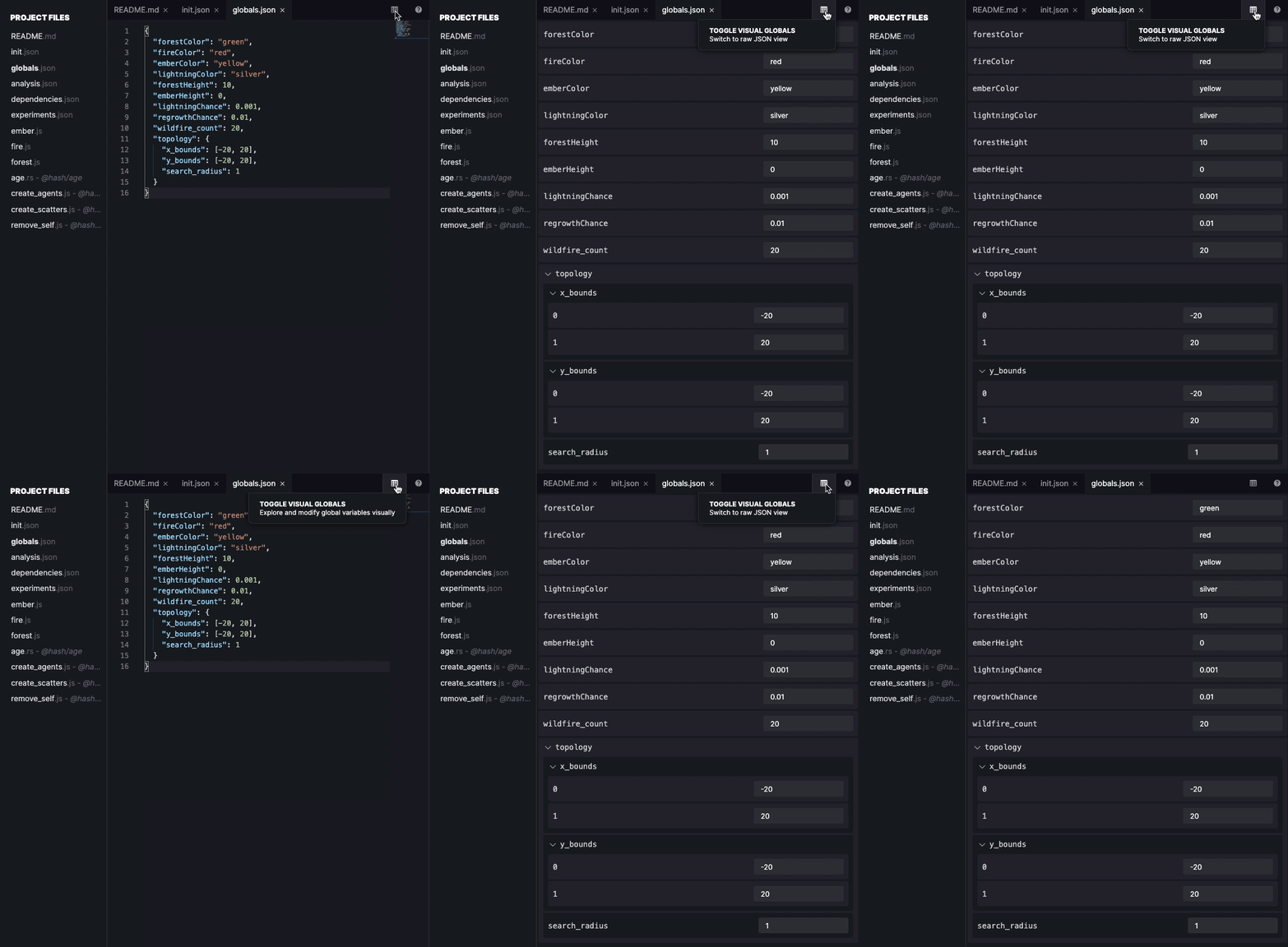
By default a non-signed in viewer of a simulation will see and interact with the visual globals view.
The type of field input for a simulation parameter can be varied by adding a "schema" property to globals. Currently you can use schemas to specify these types of interfaces be displayed in the visual globals interface:
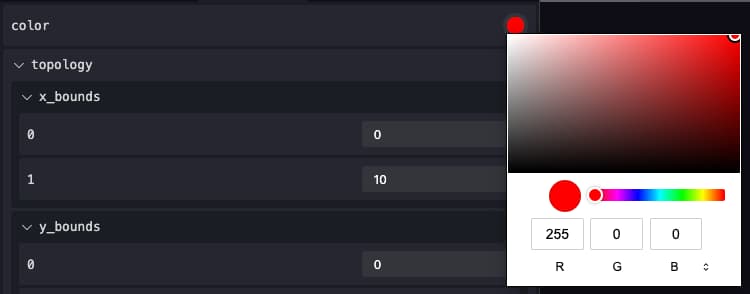
- Color Picker
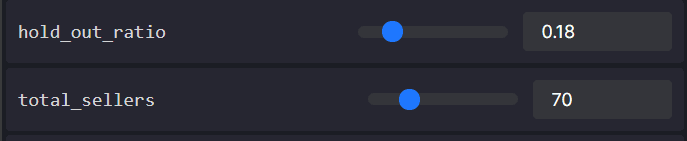
- Slider
Color PickerCopy link to this section
globals.json
{
  "<property_name>": "#ff0000",

  schema: {
    properties: {
      "<property_name>": {
        type: "string",
        enum: "colors",
      },
    },
  },
}
SliderCopy link to this section
{
  "<property_name>": 5,

  schema: {
    properties: {
      "<property_name>": {
        type: "number",
        minimum: 0,
        maximum: 10,
        multipleOf: 1,
      },
    },
  },
}